How the free editor works
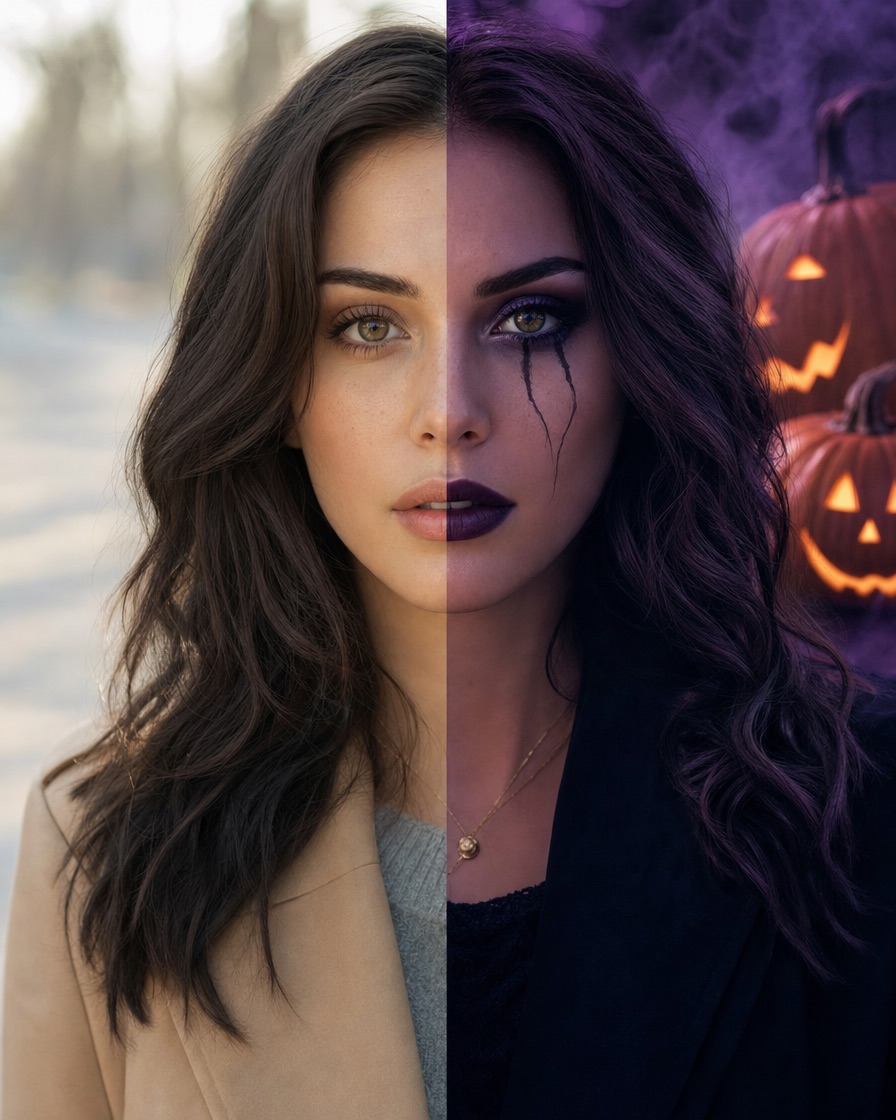
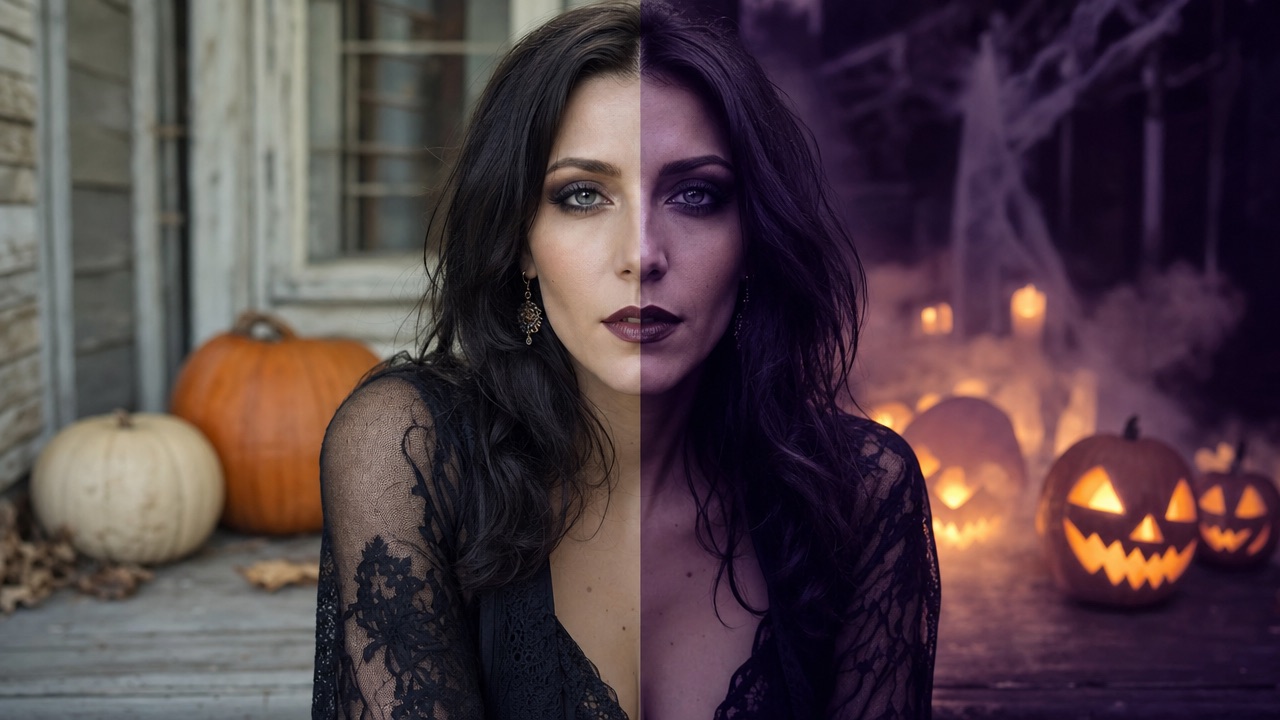
Choose a JPG, PNG or WebP image. The editor draws it to a canvas at a maximum working size, applies a colour grade pixel by pixel, and shows the result beside the original. The intensity slider blends between the original and the graded version.
Because the work happens in your browser, large photos are resized before processing. The download keeps the edited pixels at the working resolution, which is enough for social posts and invitations.
- Step 1: choose a photo
- Step 2: pick a look
- Step 3: adjust intensity
- Step 4: download the JPEG
The six looks and when to use them
Each look is a combination of brightness, contrast, saturation and a colour tint. The goal is atmosphere, not an orange filter over everything.
Use a lower intensity for portraits where the face matters. Use a higher intensity for backgrounds, invitations and mood boards.
- Pumpkin glow: warm amber highlights, soft contrast
- Midnight: cool shadows, deeper blues, slight desaturation
- Vampire: high contrast, crushed shadows, red-violet tint
- Ghost: lifted blacks, pale cool light, low saturation
- Zombie: green-yellow tint, rough contrast, muted skin
- Candlelight: warm centre, dark edges, soft vignette
Photo tips for a believable Halloween grade
Start with a photo that is already well exposed. A grade cannot recover a face that is completely in shadow, and pushing contrast on a noisy image makes the noise louder.
If you are editing a group photo, check every face after applying the look. Warm tints can make some skin tones too orange, and cool tints can make them grey. Lower the intensity or crop to one person.
- Use a sharp, well-lit original
- Avoid heavy beauty filters before grading
- Check skin tones at 100 percent
- Keep a copy of the original file
From edited photo to dance video
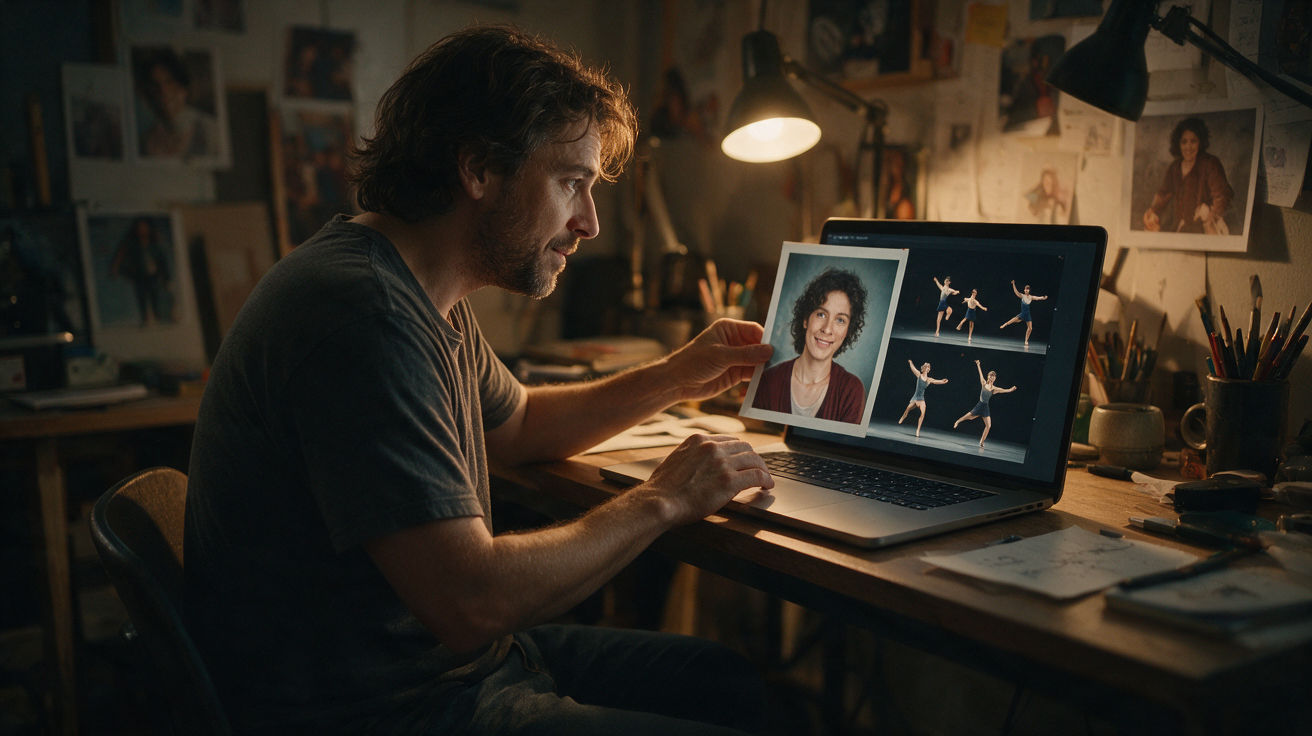
A still edit is a good costume test. A ten-second video is the post people stop scrolling for. The studio below accepts the same photo and adds motion with a licensed dance reference.
Upload the photo in image mode, add a short costume direction, and create a free watermarked preview. The editor and the video studio are separate steps, so you can keep the still image and the motion clip as two assets.
- Use the edited image as a cover or thumbnail
- Use the video as the post itself
- Keep both files in the same folder
- Add licensed audio only to the video