Why a browser editor is enough for most Halloween photos
Most Halloween photo editing is a colour grade: warm pumpkin light, cool moonlight, crushed shadows, a little fog. You do not need a desktop editor and a subscription for that. A browser tool with six good presets can do it in under a minute, and it can do it without uploading your photo to a server.
The Halloween photo editor on this site is a free, local tool. It reads the image with the Canvas API, applies a pixel-level grade and exports a JPEG. Nothing is uploaded, stored or analysed. That matters for family photos, client work and anyone who does not want another account.
This guide explains the six looks, how to use them without making skin tones look unnatural, and how to turn the edited still into a ten-second dance video when you want motion.
The six looks
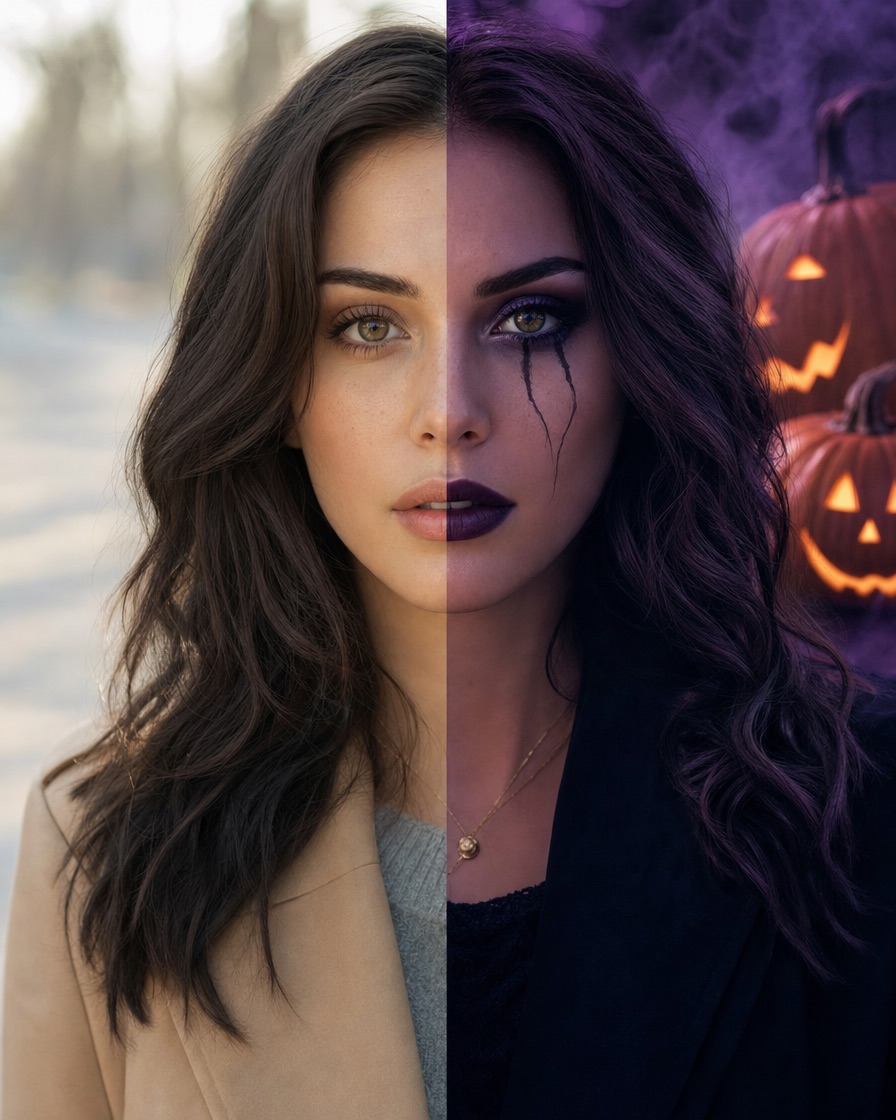
Each look is a combination of brightness, contrast, saturation, a colour tint and a vignette. The goal is atmosphere, not an orange filter over everything.
Pumpkin glow
Warm amber highlights, slightly higher contrast and a soft vignette. This is the safest Halloween look for portraits because it flatters most skin tones. Use it for pumpkins, porches and costume photos in warm light.
Midnight
Cool shadows, deeper blues and a slight desaturation. Midnight works best on photos with a dark background and a single light source. It can make skin look grey if the intensity is too high, so start around 50 percent.
Vampire
High contrast, crushed shadows and a red-violet tint. This is the most dramatic look. Use it on a photo with a strong highlight on one side of the face, and keep the intensity below 60 percent if the face matters.
Ghost
Lifted blacks, pale cool light and low saturation. Ghost is the opposite of Vampire: it makes the image feel faded rather than heavy. It works well on white costumes and foggy backgrounds.
Zombie
A green-yellow tint, rough contrast and muted skin. Zombie is a character look, not a portrait look. Use it on a full-body costume photo or a background, not on a close-up you want to keep flattering.
Candlelight
A warm centre, dark edges and a strong vignette. Candlelight is the most cinematic of the six. It works on indoor photos with a single warm light and a dark room.
How to use the editor
- Open the Halloween photo editor.
- Choose a JPG, PNG or WebP image up to 10 MB.
- Pick a look.
- Move the intensity slider until the skin tone looks believable.
- Download the JPEG.
The editor resizes very large images to a working resolution before processing. That keeps the browser responsive. The download keeps the edited pixels at that working resolution, which is enough for social posts, invitations and a blog header.
If you want to keep the original, download the edit with a new filename. The tool does not overwrite your source file.
Common mistakes
Pushing the intensity too high
The most common mistake is applying a look at 100 percent. A strong tint can make a face look orange, grey or green. Start at 50 to 65 percent and raise it only if the image still looks natural.
Grading a photo that is already too dark
A grade cannot recover a face that is completely in shadow. If the original is underexposed, brighten it first or choose a different photo. Pushing contrast on a dark image makes the noise louder.
Ignoring the background
A warm tint on a white wall can turn it cream. A cool tint on a wood floor can turn it grey. Check the background after applying the look; if it changes too much, lower the intensity or crop.
Editing a group photo without checking every face
Warm tints can make some skin tones too orange, and cool tints can make them grey. Check every face at 100 percent. If one face looks wrong, lower the intensity or crop to one person.
From still image to dance video
A still edit is a good costume test. A ten-second video is the post people stop scrolling for. The AI studio accepts the same photo and adds motion with a licensed dance reference.
Upload the photo in image mode, add a short costume direction, and create a free watermarked preview. The editor and the video studio are separate steps, so you can keep the still image and the motion clip as two assets.
A practical workflow:
- Use the edited image as a cover or thumbnail.
- Use the video as the post itself.
- Keep both files in the same folder.
- Add licensed audio only to the video.
- Use the AI label on the video, not on the still edit.
The still image does not need an AI label because the editor is a deterministic colour grade, not a generative model. The video does, because it is AI-generated.
What the editor does not do
It does not remove objects, change the background, swap clothes or generate a costume. It is a colour grade. If you need those edits, use a dedicated image editor or an AI image model. The value of this tool is speed, privacy and a consistent look across a set of photos.
It also does not upload your photo, which means it cannot back up your edit. Download the file before closing the tab.
A seasonal workflow that saves time
If you are preparing several Halloween posts, grade a batch of photos with the same look. A consistent palette makes a feed feel designed rather than random. Use Pumpkin glow for warm outdoor photos, Midnight for indoor portraits and Candlelight for close-ups.
Then pick one photo for the video studio. The still image is the anchor; the video is the reach. That combination gives you a cover, a post and a reusable prompt without paying for a second tool.
Frequently asked questions
Is the Halloween photo editor really free?
Yes. The browser editor is free, has no watermark and does not require an account. The AI video studio is a separate paid product with a free watermarked preview.
Does my photo get uploaded?
No. The editor uses the Canvas API in your browser. The image is not sent to a server.
What formats can I use?
JPG, PNG and WebP. Very large images are resized to a working resolution before editing.
Can I use the edited photo commercially?
You own the rights you already had in the photo. The editor does not add a licence or a watermark. Make sure you have permission from everyone shown.
Does the editor use AI?
No. It is a deterministic colour grade, which is why it is fast, private and free. The dance video feature uses AI.
Can I make the edit on my phone?
Yes. The editor runs in a mobile browser. The preview and download work on iOS and Android, though a large photo may take a few seconds to process.
Start with the free Halloween photo editor, grade one photo, then use the same image in the photo-to-video studio when you want motion. The first video preview is free.
Try the tool from this guide
One free watermarked preview per account. Full 720p MP4 after purchase. Failed generations return credits.
Make your Toc Toc AI dance video
Your photo guides the appearance. The source clip guides the hallway movement.
JPG, PNG or WebP · up to 10 MB
Choose a well-lit photo of one consenting adult. JPG, PNG or WebP; up to 10 MB.
Extra direction (optional)
Only selected results appear in our gallery after review. Your input remains private.
$9.90/ 1 video
50 credits · 10 secondsOne-time packs and subscriptions are available. Failed jobs return their credits.
Your videos
Upload a photo or describe a scene, then create your video.
Toc Toc AI
Toc Toc AI editorial team · Source and publishing references