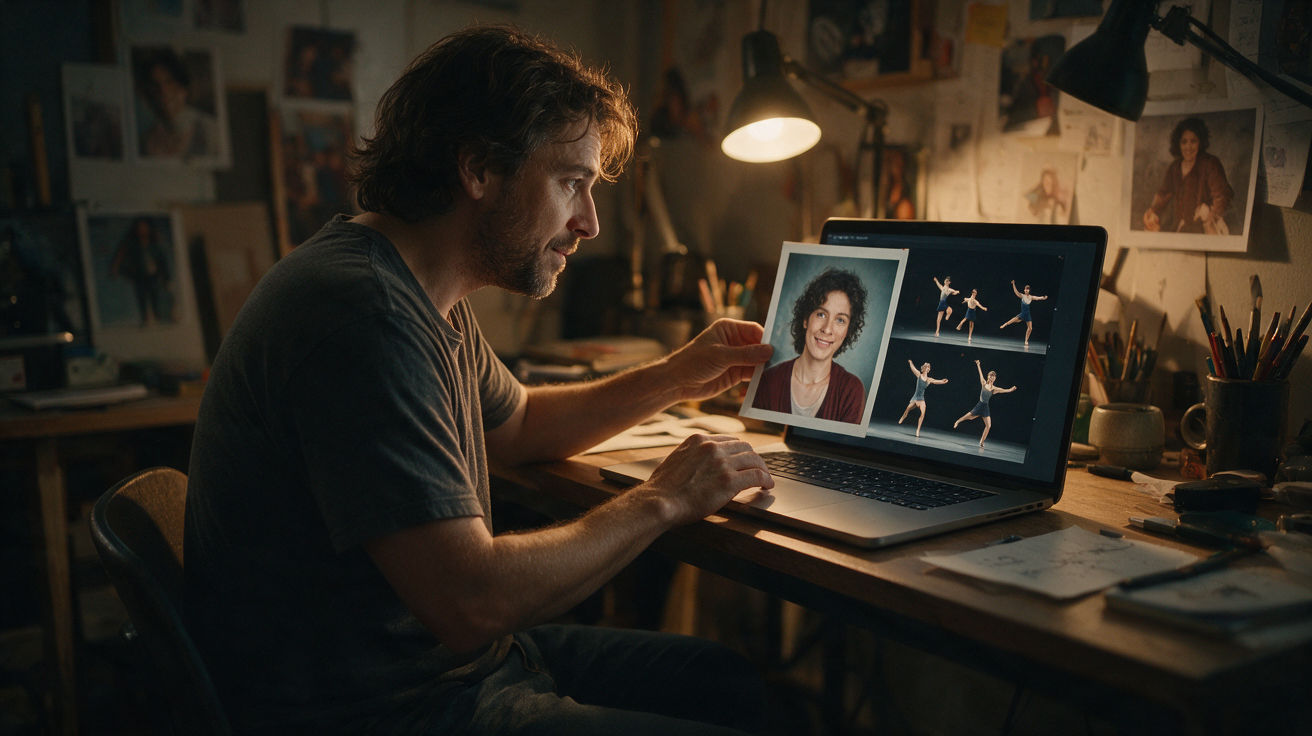
How to Make a Toc Toc AI Dance Video From One Photo
Choose a consenting adult photo, inspect the licensed hallway dance reference, and create a silent 720p Toc Toc AI video. Steps, costs, and limits explained.
· Toc Toc AI editorial team
Make your Toc Toc AI dance video
Your photo guides the appearance. The source clip guides the hallway movement.
JPG, PNG or WebP · up to 10 MB
Choose a well-lit photo of one consenting adult. JPG, PNG or WebP; up to 10 MB.
Extra direction (optional)
Only selected results appear in our gallery after review. Your uploaded photo remains private.
Three-day visit reward
Sign in and open the site on three consecutive UTC dates. Days one and two show progress only. Day three grants 50 credits. You must complete a first purchase before creating any personal video; the reward can be used afterward. Missing a day restarts progress. First-time visitors from ChatGPT receive no reward.
$9.90/ 1 video
50 credits · 10 secondsOne-time packs and subscriptions are available. Failed jobs return their credits.
Your videos
Upload a photo, review the source dance, and start when you are ready.
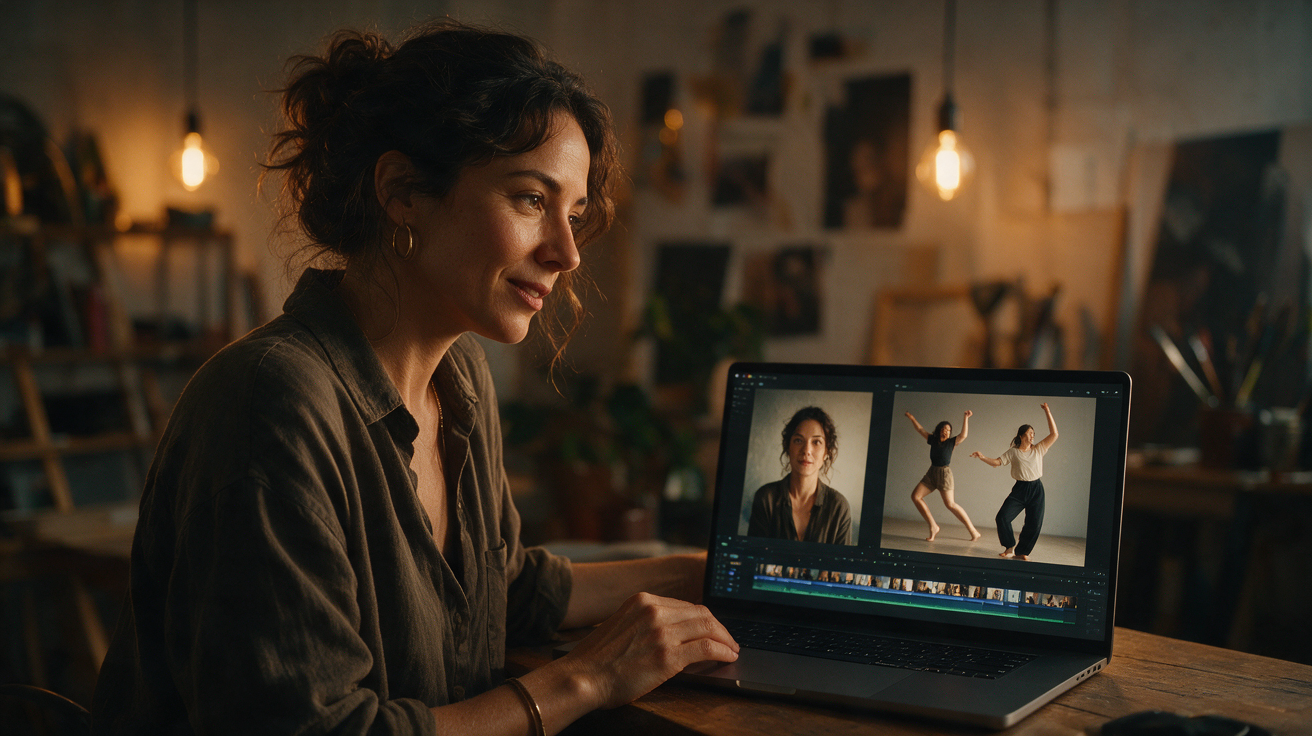
This guide provides a detailed walkthrough of creating a Toc Toc AI dance video from a single photo using toctocai.pro. You will learn how to transform a static image into a dynamic, approximately 10-second vertical MP4 video featuring a licensed hallway dance reference, all powered by the Seedance 2.0 AI model.
Before creating your own video, buy a plan first. Eligible three-day reward credits can pay after that first purchase.
Understanding the Toc Toc AI Process
Toc Toc AI animates a single photo of a consenting adult to perform a specific dance sequence. This process does not create deepfakes or perfectly replicate a person's exact movements. Instead, it generates a novel animation using your photo as the visual foundation. The AI interprets facial features and body shape from the image and maps a pre-defined dance choreography onto that interpretation.
The output is a silent, vertical MP4 video of roughly 10 seconds in length, rendered at 720p resolution. The dance choreography is based on a licensed hallway dance reference lasting about 9.4 seconds, distinct from any viral original. The AI model used is the Kie AI standard Seedance 2.0 (model ID bytedance/seedance-2).
Processing time for a single video generation typically takes around 10 minutes, though queue times vary depending on server load. The system may fail to generate a video, and there is no guarantee of likeness accuracy or choreography precision. Users can watch a public sample video on the site without an account.
Preparing Your Photo for Optimal Results
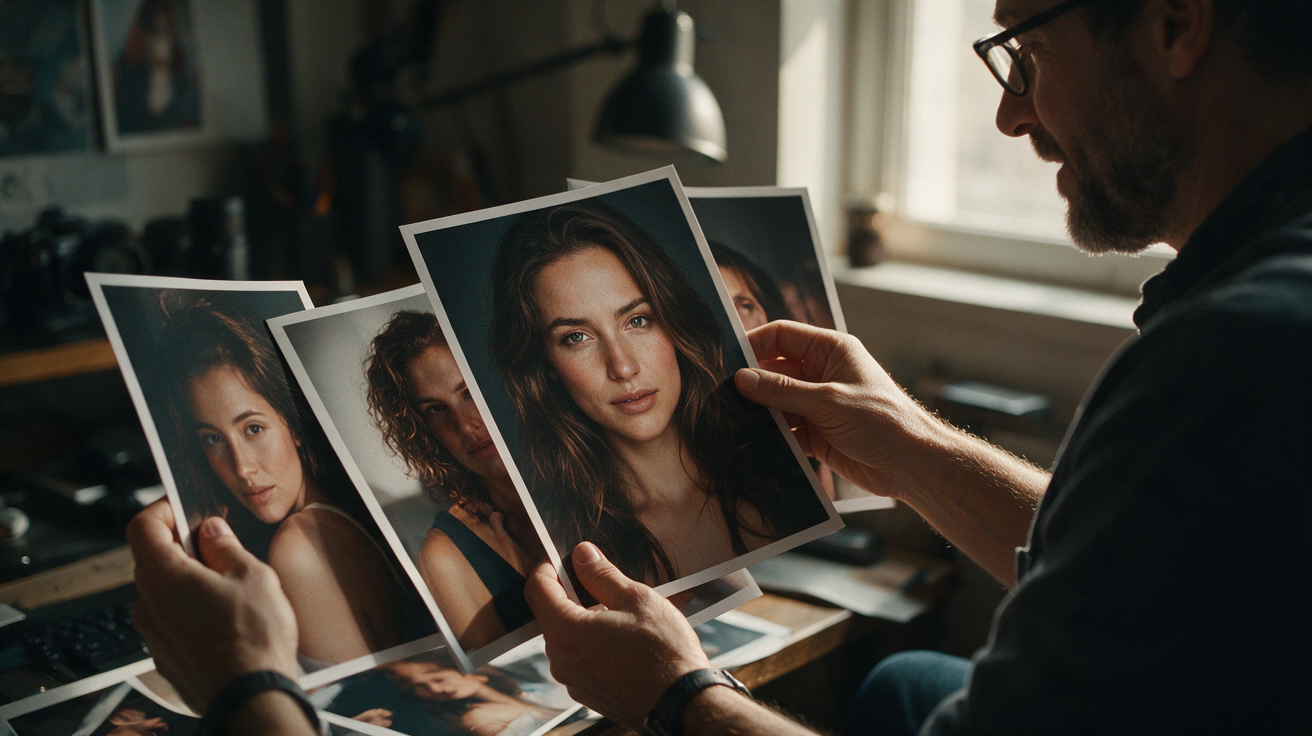
The quality and characteristics of your source photo significantly affect the final video. To maximize the chances of a successful and visually pleasing animation, follow these guidelines:
-
High Resolution: Use a clear, high-resolution photo. Although the output is 720p, a sharper input image helps the AI better discern facial and body features.
-
Front-Facing and Well-Lit: The subject should face the camera directly, with even, natural lighting. Avoid harsh shadows, overexposure, or dim lighting that obscure details.
-
Neutral or Slight Smile Expression: A neutral or mildly smiling expression tends to produce more natural animations. Extreme facial expressions may lead to unnatural results.
-
Single Consenting Adult: The system is designed for one person per photo. Images containing multiple people or non-human subjects are likely to fail or produce unpredictable outcomes.
-
File Format and Size: Uploads must be in JPG, PNG, or WebP format and cannot exceed 10 MB in size.
-
Background: While not mandatory, a relatively uncluttered background can help the AI focus on the subject.
Example of a good photo: A well-lit, front-facing headshot of a consenting adult with a neutral expression against a plain background.
Example of a poor photo: A blurry group photo taken in low light, with the subject partially obscured or turned away.
Navigating the toctocai.pro Interface
The toctocai.pro website offers a straightforward interface for generating your dance video:
-
Sign In or Sign Up: New users must create an account. Returning users can sign in with their credentials.
-
Upload Your Photo: Click the "Upload Photo" button and select your prepared image file from your device.
-
Preview Your Upload: The site displays a preview of your uploaded photo. Confirm that it meets the guidelines and is the correct image.
-
Generate Video: Click the "Generate Video" button to submit your photo for processing.
Currently, the interface accepts only one photo per generation and does not support uploading custom audio or video, selecting different AI models, multiple dancers, alternative formats or resolutions, trimming or muting the output, or receiving email notifications upon completion. Users must manually check the job status on the site.
Credits and Pricing Overview
Each video generation consumes internal credits. Understanding the credit system is essential before creating your video:
-
Cost per Generation: Each video generation costs 50 internal credits.
-
Free Credits for New Users: New users who sign up directly (not via ChatGPT) can earn 50 credits by opening the site on three consecutive UTC calendar days. Missing a day resets the streak. This is a one-time offer per account. First-time visitors from ChatGPT do not receive free credits.
-
Purchasing Credits: Credits can be purchased via the /pricing page in the form of one-time packs or monthly subscriptions.
-
One-time Packs (no expiration):
- $9.90 for 1 video credit
- $19.90 for 3 video credits
- $29.90 for 5 video credits
-
Monthly Subscription ($29.90/month):
- 10 video credits per month
- Credits expire at the end of each billing month
- Auto-renews until canceled
-
-
Yearly Basic costs $100 for 34 standard videos, billed once a year. Credits expire at the end of the billing year; cancel future renewals anytime.
Unused credits from one-time packs do not expire. Monthly subscription credits expire monthly. Purchased plans are independent of the free credit streak system.
Processing Time and Job Status
After submitting your photo for generation, your request enters a processing queue:
-
Queue Time: Varies based on server load and number of pending requests.
-
Processing Time: The AI model typically takes about 10 minutes to generate the video once processing begins.
-
Job Status: Users must check the site manually to see if their video is ready. The platform does not send email notifications upon completion.
-
Failure Handling: If the generation fails, credits used for that attempt are refunded.
Downloading and Using Your Toc Toc AI Video
Once your video is generated:
-
Access Your Videos: Navigate to the "My Videos" or "History" section on the site.
-
Preview: A 320px preview without a watermark is available after generation. This preview is not free or customizable before generation.
-
Download: The original video is private and downloadable as a silent, vertical 720p MP4 file of approximately 10 seconds.
-
Sharing: The silent MP4 can be shared on social media platforms such as TikTok, Instagram Reels, or YouTube Shorts. Since the video contains no audio, you may add your own music or sound using external video editing tools or platform features.
Worked Example: Creating a Toc Toc AI Dance Video for "Alex" (Hypothetical)
To illustrate the process, consider a hypothetical user named Alex.
Step 1: Photo Preparation
Alex selects a clear, well-lit headshot taken against a plain white wall. He is facing the camera with a slight smile. The photo is a JPG file, 1.5 MB in size, meeting all requirements.
Step 2: Sign In and Upload
Alex visits toctocai.pro and signs in. He clicks "Upload Photo" and selects his prepared JPG. The site displays a preview, which looks correct.
Step 3: Credit Check
Alex creates an account, buys a one-video pack, and earns 50 reward credits by opening the site on three consecutive UTC days. The reward can be used after his purchase.
Step 4: Initiate Generation
With credits available and the photo confirmed, Alex clicks "Generate Video." His request is added to the processing queue.
Step 5: Waiting and Checking Status
Alex waits approximately 10 minutes while the AI processes his video. He periodically checks the site to see if the video is ready.
Step 6: Download and Review
Once complete, Alex previews the 320px video without a watermark and downloads the original 720p MP4. He observes his photo animated with the hallway dance choreography.
Step 7: Sharing
Alex uploads the silent MP4 to TikTok, adds his own music track, and shares it with friends. He understands the animation is an approximation and not a perfect likeness.
Comparison of Credit Options
| Feature | One-time Packs | Monthly Subscription | Yearly Basic |
|---|---|---|---|
| Cost | $9.90 - $29.90 | $29.90/month | $100/year |
| Videos Included | 1, 3, or 5 | 10 per month | 34 per year |
| Credit Expiry | Never | Monthly | Billing year |
| Renewal | No | Automatic until canceled | Automatic until canceled |
| Best For | Occasional users | Regular creators | Regular creators |
For the latest pricing and availability, visit the pricing page.
Frequently Asked Questions (FAQ)
What kind of photos work best with Toc Toc AI?
Use clear, well-lit, front-facing photos of a single consenting adult with a neutral or slight smile. Avoid blurry images, group photos, extreme expressions, or poor lighting. The photo must be JPG, PNG, or WebP format and under 10 MB.
Can I select different dance styles or upload custom audio?
Currently, the system uses only one licensed hallway dance choreography lasting about 9.4 seconds. There is no option to choose other dances or upload custom audio or video. The generated video is silent to avoid copyright issues.
Why is my video silent? Can I add music later?
The output video contains no audio. You can add your own music or sound using video editing software or within social media platforms after downloading the video.
What if the video doesn’t look exactly like me?
The AI generates an approximation based on your photo and the fixed choreography. It does not guarantee perfect likeness or motion replication. Variations in quality and resemblance are normal.
How do I get free credits as a new user?
New users who sign up directly (not via ChatGPT) can earn 50 free credits by opening the site on three consecutive UTC calendar days. Missing a day resets the streak. This is a one-time offer per account.
What happens if my video generation fails?
If the system fails to generate your video, the 50 credits used for that attempt are refunded automatically.
Can I receive email notifications when my video is ready?
No. The platform does not currently send email notifications upon completion. You must check the site manually to monitor your job status.
Does the platform screen content for inappropriate material?
Yes. The system screens uploaded photos, input text, and generated videos for NSFW content to maintain compliance and safety.
Who do I contact for support or inquiries?
You can reach out via email at contact@toctocai.pro for assistance or questions.
For more tips on creating engaging AI-generated videos, explore the Toc Toc AI Prompt Guide.
This platform is new and evolving. For the latest updates on features, pricing, and availability, please visit the official pricing page.