Fix Toc Toc AI Face Distortion: Photo and Prompt Tips
If a Toc Toc AI result changes your face, check photo lighting, pose, and prompt wording before trying again. Learn the model limits and when credits return.
· Toc Toc AI editorial team
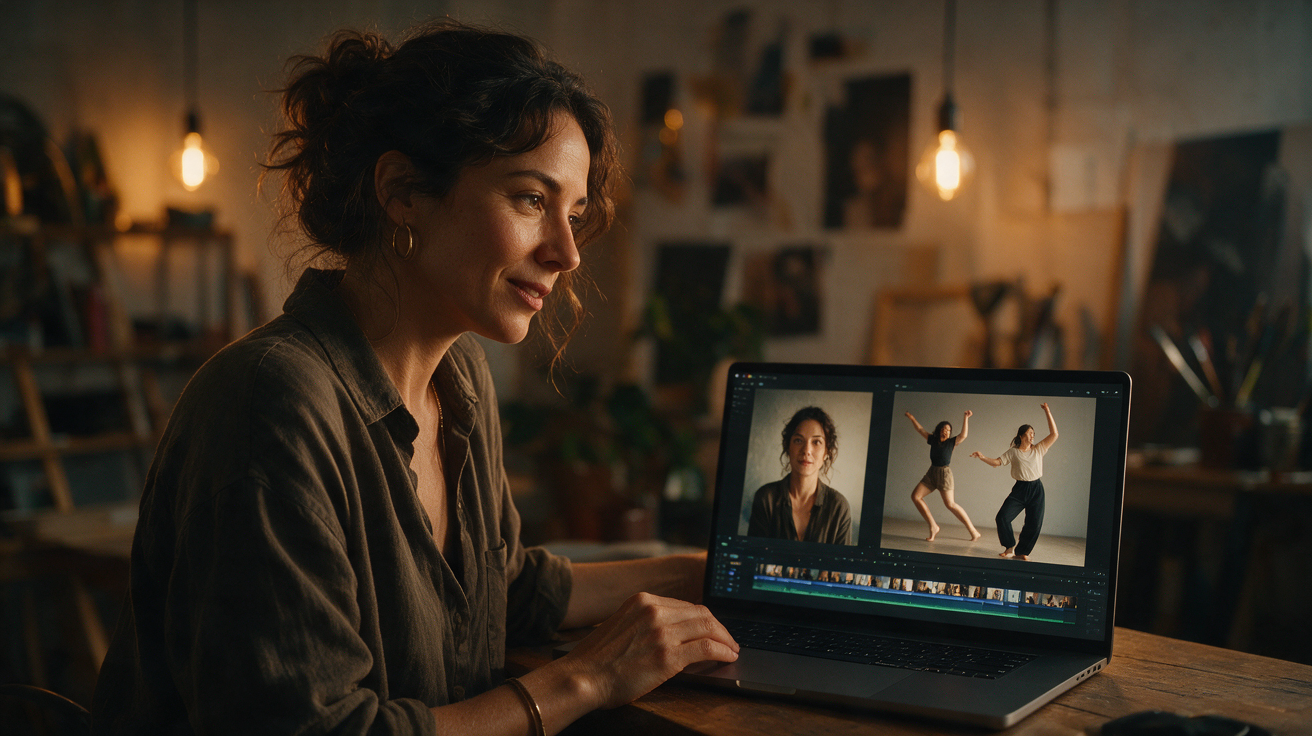
Make your Toc Toc AI dance video
Your photo guides the appearance. The source clip guides the hallway movement.
JPG, PNG or WebP · up to 10 MB
Choose a well-lit photo of one consenting adult. JPG, PNG or WebP; up to 10 MB.
Extra direction (optional)
Only selected results appear in our gallery after review. Your uploaded photo remains private.
Three-day visit reward
Sign in and open the site on three consecutive UTC dates. Days one and two show progress only. Day three grants 50 credits. You must complete a first purchase before creating any personal video; the reward can be used afterward. Missing a day restarts progress. First-time visitors from ChatGPT receive no reward.
$9.90/ 1 video
50 credits · 10 secondsOne-time packs and subscriptions are available. Failed jobs return their credits.
Your videos
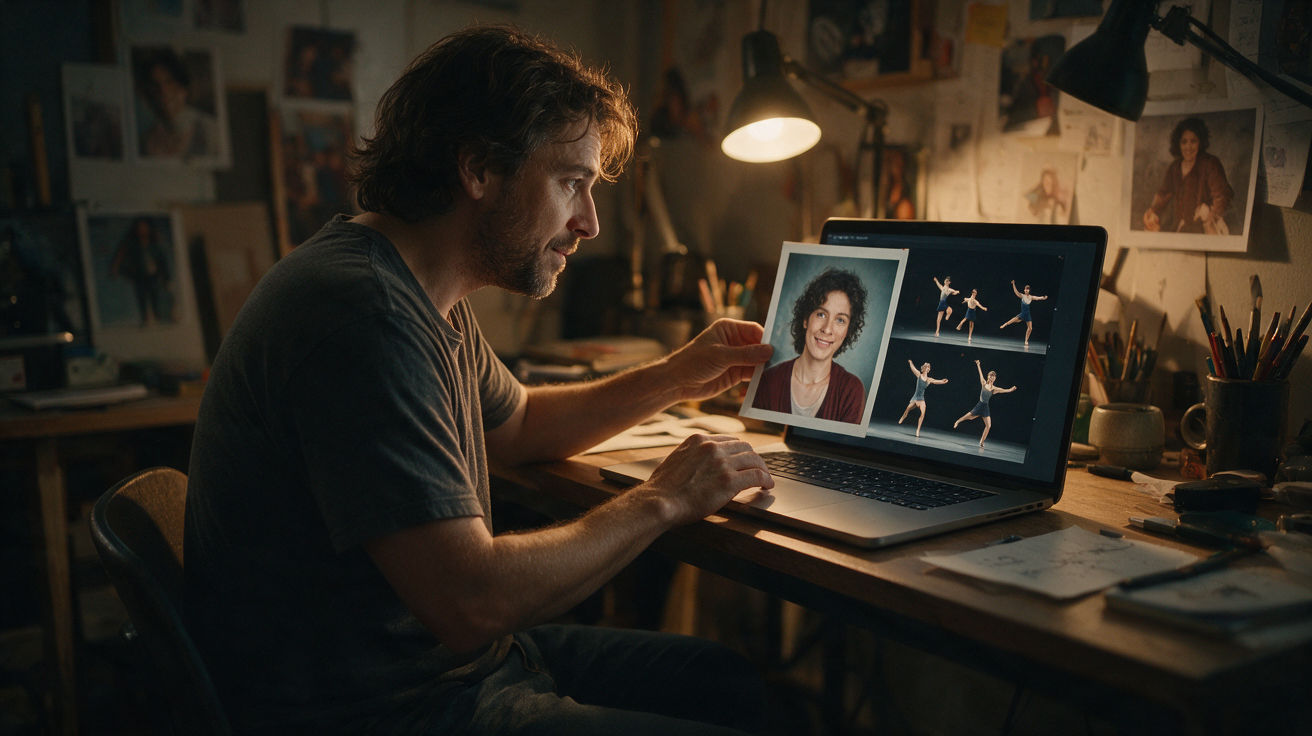
Upload a photo, review the source dance, and start when you are ready.
Fixing Toc Toc AI Face Distortion: Practical Pose and Lighting Adjustments
Before creating your own video, buy a plan first. Eligible three-day reward credits can pay after that first purchase.
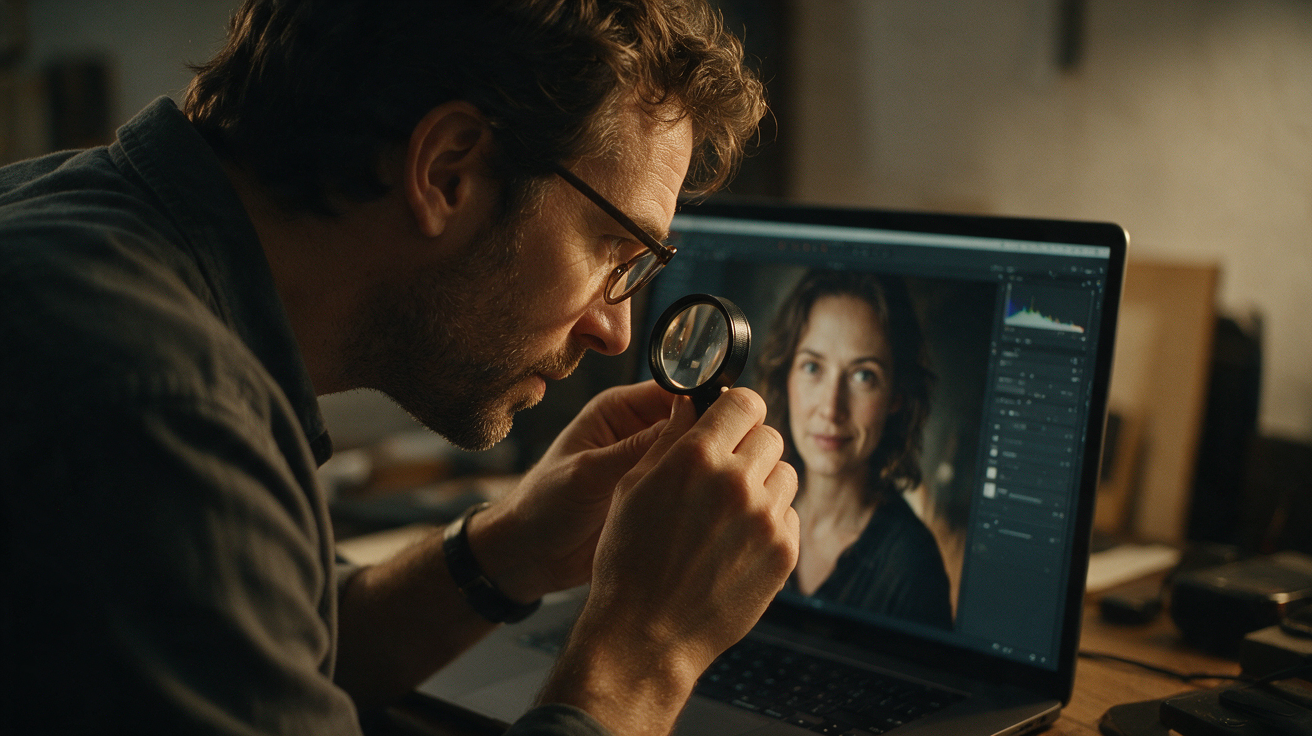
When using Toc Toc AI to generate animated videos from a single photo, users may encounter face distortion issues in the output. These distortions can appear as unnatural facial expressions, warped or misaligned features, or ghosting effects. Understanding the limitations of the platform and optimizing your input photo’s pose and lighting can help reduce these problems and improve the quality of your generated video.
This guide explains why pose and lighting matter for Toc Toc AI, practical steps to optimize your photo, a comparison of common distortion types and their causes, a hypothetical worked example, and answers to frequently asked questions. It is designed to help you troubleshoot and enhance your Toc Toc AI video creations effectively.
Why Pose and Lighting Matter in Toc Toc AI Face Generation
Toc Toc AI accepts one JPG, PNG, or WebP photo (up to 10 MB) of a consenting adult to generate a silent, vertical 720p MP4 video approximately 10 seconds long. The system animates your face using the Kie AI Seedance 2.0 model (bytedance/seedance-2) based on a single licensed stock hallway dance reference clip. Because the AI attempts to map your static face onto dynamic dance movements, the quality and characteristics of your input photo significantly influence the final video.
The AI’s facial landmark detection and animation rely on clear, consistent visual cues from your photo. If the pose or lighting is unusual, inconsistent, or obscures facial details, the AI may misinterpret key features, resulting in distortions. Since Toc Toc AI currently only accepts one photo per generation and does not offer multiple model options or editing tools, optimizing your input is crucial.
Key points:
- Pose: A neutral, frontal face with minimal tilt or rotation helps the AI detect facial landmarks accurately.
- Lighting: Even, diffused lighting without harsh shadows or color casts ensures facial features are clearly visible.
By improving these two factors, you increase the chances of generating a video with natural-looking facial movements and fewer distortions.
Optimizing Pose for Toc Toc AI
The ideal photo pose for Toc Toc AI is a straightforward, neutral expression facing the camera directly. Here are detailed recommendations:
- Face the camera head-on: Avoid turning your head to the side or tilting it up/down. A straight, frontal face is best.
- Maintain a neutral or slight smile: Avoid exaggerated expressions such as wide smiles, frowns, or squinting, which can confuse landmark detection.
- Keep eyes open and looking forward: Closed or partially closed eyes reduce the AI’s ability to track eye movements.
- Remove face-obstructing accessories: Glasses, hats, or hair covering parts of your face can interfere with facial feature recognition.
- Avoid extreme head angles: Do not lean too close or too far from the camera; maintain a natural distance.
If your existing photo does not meet these criteria, consider taking a new one under controlled conditions or making minor adjustments with photo editing software before uploading.
Setting Up Lighting to Minimize Distortion
Lighting quality directly affects the AI’s perception of your face. Follow these guidelines to improve lighting conditions:
- Use soft, even lighting: Natural daylight filtered through a white curtain or softbox lighting reduces shadows and highlights facial details evenly.
- Avoid directional or harsh lighting: Side lighting or strong overhead lights create shadows that obscure facial contours.
- Eliminate color casts: Ensure your photo does not have unnatural color tints caused by artificial lighting (e.g., yellow/orange from tungsten bulbs).
- Illuminate the entire face: Shadows under the eyes, nose, or chin can cause loss of detail and misalignment.
- Prevent overexposure: Bright spots wash out features and confuse the AI.
If your photo has poor lighting, moderate adjustments to brightness and contrast in photo editing software can help, but avoid excessive editing or filters that alter natural skin tones.
Common Face Distortion Types and Their Pose/Lighting Causes
| Distortion Type | Likely Pose Cause | Likely Lighting Cause |
|---|---|---|
| Warped eyes or mouth | Head tilted or rotated severely | Shadows obscuring eye/mouth area |
| Blurred facial features | Extreme expression or squinting | Low light or uneven illumination |
| Misaligned facial parts | Face partially obscured by hair or glasses | Overexposed highlights on face |
| Double or ghosting effects | Non-neutral pose or profile angle | Mixed color casts or uneven shadows |
| Flattened or stretched face | Head too close or too far from camera | Harsh directional lighting |
Recognizing these patterns can help you diagnose the cause of distortions in your generated video and apply the appropriate fixes.
Hypothetical Worked Example: Fixing Face Distortion for “Alex”
To illustrate how to improve face distortion issues, consider the following hypothetical example.
Step 1: Analyze the Original Photo
Alex uploads a photo where:
- His head is tilted slightly to the right.
- Lighting is uneven, with a shadow on the left side of his face.
- He is smiling broadly with eyes partially squinting.
- Glasses reflect light, obscuring his eyes.
The resulting video shows warped eyes and a stretched mouth.
Step 2: Adjust Pose
Alex retakes the photo:
- Facing the camera directly with a neutral expression.
- Eyes fully open and looking forward.
- Glasses removed to avoid reflections.
Step 3: Improve Lighting
Alex moves to a location with natural daylight filtered through a white curtain, creating soft, even lighting without harsh shadows or bright spots.
Step 4: Upload and Generate
He uploads the new photo (4 MB PNG). The AI uses the Seedance 2.0 model with the licensed hallway dance reference. After about 10 minutes in the queue, the system outputs a 10-second vertical 720p silent MP4 video.
Step 5: Review Results
The new video shows natural facial movements without distortion. Eyes and mouth move smoothly, and lighting appears consistent.
Step 6: Optional Fine-Tuning
Alex experiments with slight brightness adjustments in photo editing software and regenerates the video to confirm improvements.
By focusing on a neutral pose and balanced lighting, Alex reduces face distortion effectively.
Comparison of Pose and Lighting Fixes for Toc Toc AI
| Aspect | Pose Fixes | Lighting Fixes | Impact on AI Output |
|---|---|---|---|
| Facial landmark detection | Frontal, neutral face improves accuracy | Even lighting highlights features | Reduces warped or blurred parts |
| Expression | Relaxed, open eyes reduce errors | Balanced brightness prevents loss of detail | Enhances natural motion mapping |
| Accessories | Remove or minimize face obstructions | Avoid reflections or color casts | Prevents misalignment or ghosting |
| Head angle | Avoid tilt or rotation | Avoid directional shadows | Maintains facial symmetry |
Applying these complementary fixes helps the AI interpret your face more accurately and produce better results.
Additional Tips for Best Results
- Use a high-resolution photo close to the 10 MB limit for maximum detail.
- Avoid extreme makeup or face paint that may confuse the AI.
- Upload only one consenting adult photo per generation, as required by the platform.
- Be aware that the AI may fail to generate a video; in such cases, your credits are refunded.
- Queue times vary and can take around 10 minutes or longer depending on server load.
- The platform screens content for NSFW compliance.
- Toc Toc AI does not currently support custom audio/video uploads, multiple dancers, different models, or editing tools such as trimming or muting.
- You can check job status on the site; no email notifications are sent upon completion.
- The generated video is silent and approximately 10 seconds long in vertical 720p MP4 format.
- A low-resolution custom preview (320px wide without a watermark) is available only after generation, not as a free preview.
- For pricing and credit details, visit the /pricing page.
- The site is new and does not provide user ratings, testimonials, or guaranteed performance.
Frequently Asked Questions (FAQs)
How do I know if my photo’s pose is suitable?
A suitable photo shows a straight-on, neutral expression with eyes open and facing the camera. Avoid head tilts, extreme expressions, or profile angles. If your video shows warped features, retake the photo following these guidelines.
Can I fix lighting issues with photo editing software?
Yes, moderate adjustments to brightness, contrast, and color balance can help improve lighting. Avoid heavy filters or over-editing, which may confuse the AI.
Why does wearing glasses cause face distortion?
Glasses can reflect light or obscure eyes, which are critical for facial landmark detection. Removing glasses or using anti-reflective lenses reduces distortion risk.
What if my face is partially covered by hair or accessories?
Partial occlusion can cause misaligned features in the video. Keep your face fully visible and unobstructed in the uploaded photo.
How long does Toc Toc AI take to render videos?
Rendering time varies but typically takes about 10 minutes. Queue times depend on server load and input quality. You can check your job status on the site; no email notifications are sent.
Conclusion
Face distortion in Toc Toc AI videos often results from input photo pose and lighting issues. Since the platform uses a single licensed dance reference and the Seedance 2.0 AI model to animate one uploaded photo, optimizing your image is essential. Aim for a neutral, frontal pose with relaxed expression and even, diffused lighting to improve facial landmark detection and reduce distortions. Avoid head tilts, harsh shadows, and obstructions such as glasses or hair.
By following the practical steps and tips outlined here, you can enhance the quality of your Toc Toc AI videos and create more natural, engaging dance animations.
For more information on credits, pricing, and content guidelines, visit the /pricing page and the blog posts on privacy and music rights at /blog/toc-toc-ai-privacy-consent and /blog/toc-toc-ai-music-rights. To start creating your own videos, go to the homepage at / and ensure you have sufficient credits to submit your generation.
If you have further questions or need support, contact the team at contact@toctocai.pro.
With careful attention to pose and lighting, your Toc Toc AI videos will look their best—bringing your dance-inspired animations to life with clarity and style.